> This page is for version 2025-09-18 (default).
> For other versions, use one of these documentation indexes:
> - 2025-09-18 (default): https://apidocs.polytomic.com/2025-09-18/llms.txt
> - 2024-02-08: https://apidocs.polytomic.com/2024-02-08/llms.txt
> - 2023-04-25: https://apidocs.polytomic.com/2023-04-25/llms.txt
> For clean Markdown of any page, append .md to the page URL.
> For a complete documentation index, see https://apidocs.polytomic.com/llms.txt.
> For AI client integration (Claude Code, Cursor, etc.), connect to the MCP server at https://apidocs.polytomic.com/_mcp/server.
Hosted authentication runs the authentication flow in a Polytomic-hosted window.
After minting a token, you navigate the user to the supplied URL. After the user
authenticates and configures their connection, Polytomic redirects back to your
app with the new connection details. To keep the flow inside your React app
instead, see [Embedded authentication](/2025-09-18/guides/connect/embedded).


## 1. Mint a token
Mint a Connect session from your backend with
[`POST /api/connections/connect/`](/2025-09-18/api-reference/connections/connect):
```bash
curl -X POST https://app.polytomic.com/api/connections/connect/ \
-H "Authorization: Bearer $POLYTOMIC_API_KEY" \
-H "Content-Type: application/json" \
-d '{
"name": "Acme Salesforce",
"whitelist": ["salesforce"],
"redirect_url": "https://example.com/integrations/connected"
}'
```
| Field | Meaning |
| ----------------------- | -------------------------------------------------------------------------------------------------------------------------------------------------------------------------------------------- |
| `name` | Required. How the connection appears in the organization. Unique per connection type. |
| `redirect_url` | Required. Where the user returns when the flow ends. |
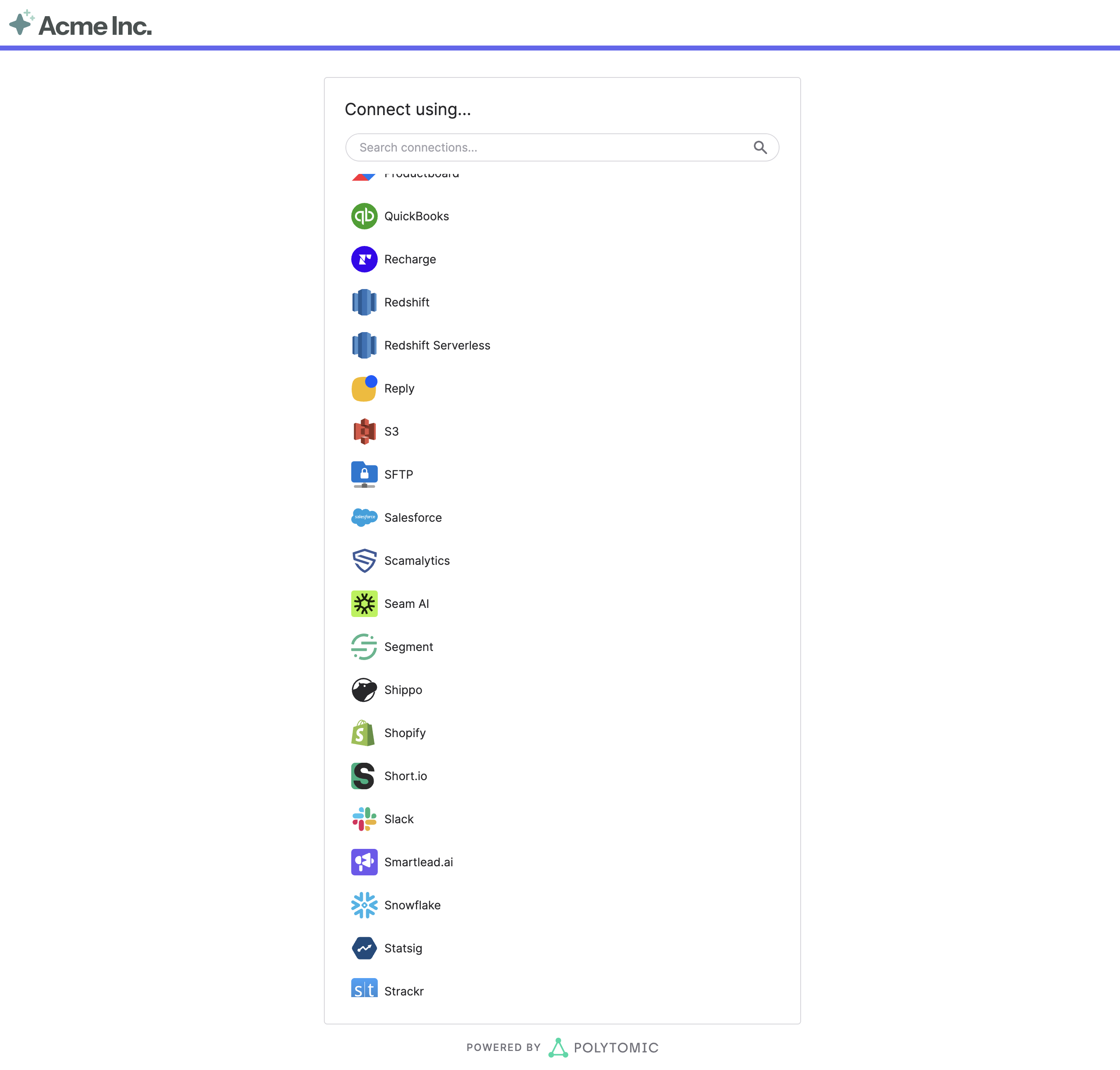
| `whitelist` | Connection types to offer, such as `["salesforce"]`. One entry opens that type's form; several show a picker first. See [`GET /api/connection_types`](/2025-09-18/api-reference/connections/get-types). |
| `connection` | ID of an existing connection to reconnect or edit. |
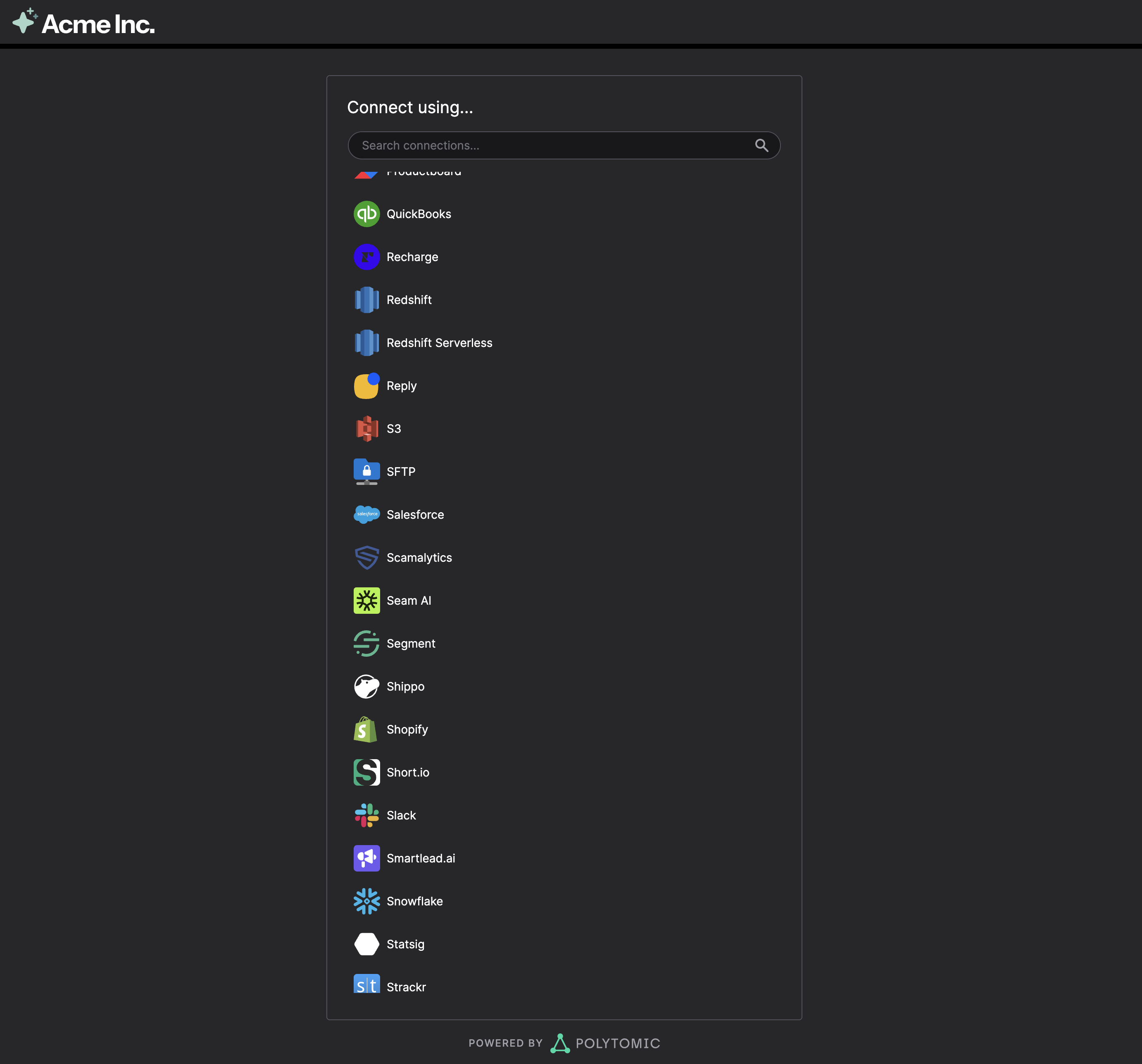
| `dark` | Use the dark theme. |
| `use_organization_name` | Show the organization's name instead of your partner name. |
| `ttl` | Token lifetime in seconds. Default `300`, maximum `604800` (7 days). |
The response's `data.redirect_url` is the hosted page for this session.
> **Keep the API key on your server**
>
> Never send your API key to the browser. The browser only needs the hosted
> page's URL.
## 2. Navigate the user to the page
Open `redirect_url` in a popup (recommended) so your page stays open, or in a
new tab or the current window. The page can't be embedded in an iframe.
The user will be prompted to authenticate and complete any additional
configuration required to create the desired connection.
### Open it in a popup
Open the popup in the click handler, before any `await`. Browsers block popups
opened later. Then point it at the hosted page:
**`connect.ts`**
```ts title="connect.ts"
async function connectInPopup() {
const popup = window.open(
"",
"polytomic-connect",
"popup,width=600,height=700",
);
if (!popup) throw new Error("The browser blocked the popup");
// Your backend mints the session and returns data.redirect_url.
const response = await fetch("/connect-session", { method: "POST" });
if (!response.ok) {
popup.close();
throw new Error(await response.text());
}
popup.location.href = await response.text();
}
const channel = new BroadcastChannel("polytomic-connect");
channel.onmessage = ({ data }) => {
// data is { connection, name, status }. Confirm it on your backend.
};
```
When the flow ends, Polytomic sends the popup to your `redirect_url`, with the
result in its query parameters (see step 3). Host a small page there, on the
same origin as the page that opened the popup, and use its address as
`redirect_url` when you mint the session. It reads the result from the URL,
passes it to the opening page over the channel, and closes the popup:
**`connected.html`**
```html title="connected.html"
You can close this window.
```
Use a `BroadcastChannel` rather than `window.opener.postMessage`. Some OAuth
providers, Google included, cut the popup's link to its opener during sign-in,
so `window.opener` is `null` by the time the popup returns. For the same reason,
`popup.closed` can be `true` while the popup is still open, so don't use it to
detect that the user gave up.
## 3. Handle the redirect
When the flow completes, Polytomic redirects to your `redirect_url` with these
query parameters:
| Parameter | Value |
| ------------ | ------------------------------------------- |
| `connection` | The connection ID. |
| `name` | The connection name. |
| `status` | The connection's status, such as `healthy`. |
```text
https://example.com/integrations/connected?connection=8a1f1c3e-2a64-4c3b-9a43-6f1e0c2b7d55&name=Acme+Salesforce&status=healthy
```
If the user cancels or the session expires, `status` is `canceled`. If the user
leaves before finishing, an incomplete connection can remain in the
organization. Check a connection's `status` before using it, and delete unused
ones.
> **Verify the result on your backend**
>
> Query parameters come from the browser. Confirm the connection with [`GET
> /api/connections/{id}`](/2025-09-18/api-reference/connections/get) before relying on
> them.
## Reconnect a connection
To reconnect or edit a connection, mint a session with `connection` set to its
ID. `name` is still required but ignored. A healthy connection opens on the
success screen; otherwise the form opens with the saved values.
## Branding
* **Logo.** Email an SVG to [support@polytomic.com](mailto:support@polytomic.com). It replaces the Polytomic
logo in the header, with "Powered by Polytomic" in the footer.
* **Dark theme.** Set `dark: true`.
* **Name.** The page shows your partner name by default. Set
`use_organization_name: true` to show the organization's name.